Royal Star PH App Login & Update Issues: Fixes for Android & iOS
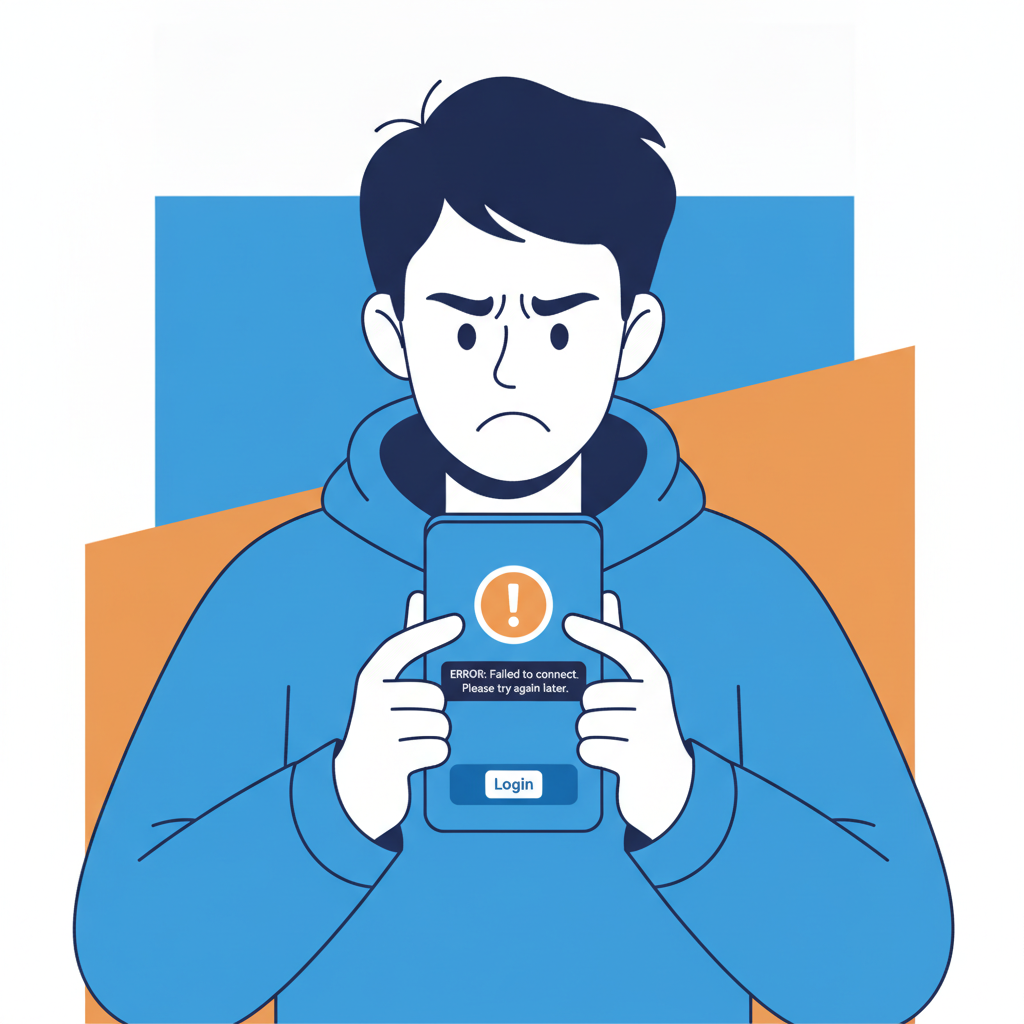
Royal Star PH App Login & Update Issues: Fixes for Android & iOS
Royal Star PH offers an Android APK and iOS app for Filipino players who prefer mobile casino and sports betting. Most users in Metro Manila and the provinces rely on their phones to access slots, live dealer tables, and PBA or NBA betting. When the app won't install, login fails, or updates break, you lose access to your account and any pending bets or withdrawals.
This guide walks through common Royal Star PH app problems—APK installation errors on Android, login loops, session expired messages, manual update steps, and compatibility issues with older devices. All fixes are written for players already using the platform who need their app working again.
21+ only. Online casino and sports betting are restricted to adults. If you feel you're spending more time or money than intended, set deposit limits in your account settings or reach out to support.
'App Not Installed' or APK Errors on Android
Android users download the Royal Star PH app as an APK file because it is not available on the Google Play Store. When installation fails with an "App not installed" or "Package appears to be corrupt" error, the most common causes are leftover cache, partial downloads, or blocked permissions.
Clear existing app data first. If you previously installed the Royal Star PH app and are trying to update or reinstall, go to Settings > Apps > Royal Star PH and tap Uninstall. Then open Settings > Storage > Cached data and clear it. This removes fragments from the old version that can conflict with a fresh install.
Re-download the APK. Open your mobile browser and visit the official Royal Star PH website. Tap the Android download link and save the APK to your phone's Downloads folder. Do not install from third-party sites or file-sharing apps; only use the link provided on the verified Royal Star PH homepage.
Enable "Install from Unknown Sources." Before you tap the APK file, go to Settings > Security (or Privacy on some Android versions) and toggle Install unknown apps or Unknown sources to allow your browser or file manager to install apps. You may need to grant this permission individually for Chrome, Samsung Internet, or your file manager app.
Run the installer. Open your Downloads folder, tap the APK file, and follow the prompts. If the error persists, restart your phone and try again. A device reboot clears temporary system states that sometimes block installations.
Check storage space. The Royal Star PH app requires around 100–150 MB of free space. If your phone storage is nearly full, delete unused apps or media files before installing.
Login Loop or 'Session Expired' Errors in the Royal Star PH App
A login loop happens when the app returns you to the login screen immediately after entering your username and password, or when you see "Session expired" messages even though you just logged in. These errors are usually tied to cached credentials, server sync issues, or unstable mobile data.
Log out completely and clear app cache. On Android, go to Settings > Apps > Royal Star PH > Storage and tap Clear cache (not Clear data, which erases saved login details). On iOS, you must uninstall and reinstall the app to clear cache. After clearing, open the app and log in again with your registered mobile number or email and password.
Switch between Wi-Fi and mobile data. Session timeouts often occur when your connection drops mid-authentication. If you are on mobile data, switch to Wi-Fi, or vice versa. Royal Star PH's servers may momentarily reject requests from certain mobile carriers during peak hours in Metro Manila.
Check server status. Occasionally the Royal Star PH platform undergoes scheduled maintenance, typically late at night or early morning. If login fails across both the app and the mobile website, wait 15–30 minutes and try again. There is no public status page, so check the official Royal Star PH Facebook page or Telegram channel for announcements.
Reset your password. If you repeatedly see "Invalid credentials" or the app freezes at login, tap Forgot Password on the login screen. Enter your registered mobile number or email, request a reset code, and create a new password. This also refreshes your session token on the server.
Update the app. An outdated version may use deprecated authentication methods. See the next section for update instructions.
How to Check for and Install App Updates Manually
Royal Star PH does not push automatic updates through an app store. You must manually download and install new versions when they are released. Updates fix bugs, patch security holes, and ensure compatibility with the latest Android and iOS releases.
Check the official website for the latest version. Open your mobile browser and go to the Royal Star PH homepage. Scroll to the app download section; the version number is usually displayed next to the Android or iOS link (for example, "v2.3.1"). Compare this with the version installed on your phone. On Android, go to Settings > Apps > Royal Star PH and look for the version number at the bottom of the app info screen. On iOS, open the app, go to Settings or About, and check the version.
Download and install the new APK (Android). If a newer version is available, download the APK from the official site. You do not need to uninstall the old version first; the new APK will overwrite it and preserve your login session. Tap the downloaded file and confirm the update. If installation fails, uninstall the old app completely, clear cache, and install the new version fresh.
Re-download the app from the website (iOS). iOS updates for Royal Star PH also come as a download link on the official site, because the app uses an enterprise certificate or TestFlight distribution rather than the App Store. Tap the iOS link, follow the profile installation prompts under Settings > General > Device Management, and trust the developer certificate. Then open the app from your home screen. If the update does not appear, delete the old app first and download again.
Keep screenshots of your account balance. Before updating, take a screenshot of your wallet balance and any active bets. Updates should not affect your account data, but having a record helps if you need to contact support.
Install updates as soon as they are announced. Royal Star PH may disable older app versions after a major update to protect against security vulnerabilities. Running outdated software can also trigger login errors or prevent deposits and withdrawals from processing.
Compatibility Problems with Older Android Versions or iOS Devices
The Royal Star PH app requires a minimum operating system version to function. Older phones may install the app but experience crashes, frozen screens, or missing features like live dealer video streams.
Android minimum: version 6.0 (Marshmallow) or higher. If your phone runs Android 5.1 or earlier, the Royal Star PH APK may install but fail to load games or display "Device not supported" errors. Check your Android version under Settings > About phone > Software information. If you cannot upgrade your OS, consider using the mobile website in Chrome or Samsung Internet instead of the app.
iOS minimum: iOS 12 or higher. The Royal Star PH iOS app typically supports iPhone 6s and newer models. Older devices like the iPhone 5s or 6 may run iOS 11 or below and cannot install the app. To check, go to Settings > General > About > Software Version. If your iOS is too old, access Royal Star PH through Safari on your phone.
RAM and processor limitations. Budget Android devices with 2 GB of RAM or less may struggle to run live casino games or handle high-resolution slot graphics. If the app frequently freezes or closes, restart your phone before each session and close background apps to free up memory.
Screen size and resolution issues. Some older phones with small screens (below 5 inches) or low resolution may display buttons or menus incorrectly. If tap targets are misaligned or text is cut off, switch to the mobile website, which auto-adjusts layout for smaller screens.
Use the mobile website as a fallback. If your device is incompatible with the app, open your browser and go to the Royal Star PH site. Log in with the same credentials you use in the app. The mobile site offers the same games, deposit and withdrawal options (GCash, Maya, InstaPay, PESONet), and sports betting markets. Performance may be slower on very old phones, but you will not lose access to your account.
21+ Only. Keep Your App Updated for Security and Smooth Access
Staying on the latest version of the Royal Star PH app protects your account credentials and payment information. Updates patch vulnerabilities that could expose your GCash or Maya transactions, and they prevent login errors that lock you out during time-sensitive bets on PBA or NBA games.
If you continue to experience install failures, login loops, or compatibility errors after trying these fixes, contact Royal Star PH support through the live chat widget on the website or the official Telegram channel. Provide your device model, Android or iOS version, and a screenshot of any error messages.
Responsible gambling reminder: Online casino and sports betting should be entertainment, not a source of income. Set a budget before you play, and stop if you find yourself chasing losses. Royal Star PH is for players aged 21 and above only.